Ghost teaching
Ghost teaching is a feature that allows you to teach a robot by moving a ghost object in a simulation environment. The ghost object is a virtual representation of the robot’s end effector and can be moved around in the simulation environment. The connected virtual or physical robot will take the position of the ghost object.
Prerequisites
You need to complete 3 steps to use ghost teaching with Wandelbots NOVA in NVIDIA Isaac Sim:
- Set up a scene
- Add a robot and tool to the scene.
Ensure the Tool API is applied and configured, otherwise the connected motion group will not be found. - Connect to NVIDIA Isaac Sim
The connect step configures the robot prim with the Motion group API. If the robot prim is not configured the backend will fail to find a reference flange prim for the tool TCP position.
Use ghost teaching
Right click on the tool TCP prim and go to Create → Wandelbots NOVA → Create Ghost Object to create a ghost object.
Ghost objects will receive the Ghost Object API which contains the reference TCP for creation as source.
Move the motion group
Moving to a ghost object can be done via the integrated Ghost Teaching Tool Bar.

Tool bar
The tool bar will appear automatically once a ghost object is selected. It displays the currently selected motion group, TCP and ghost object.
If the tool bar is not automatically displayed: Activate the tool bar via Tools → Wandelbots NOVA → Ghost Teaching Tool Bar.
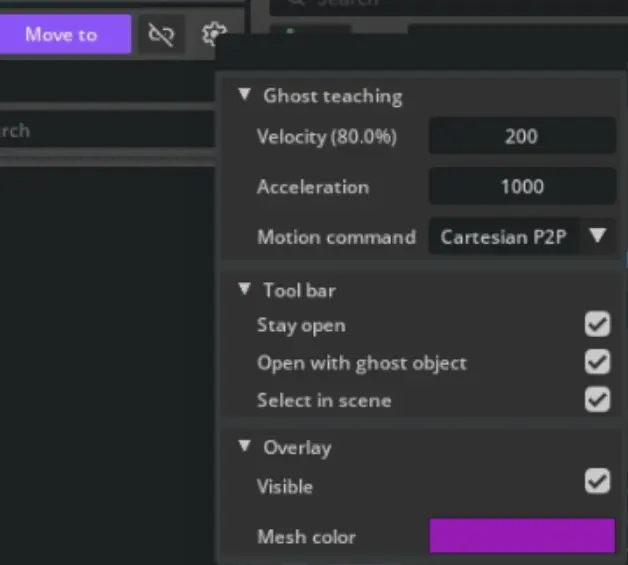
The behavior can be changed in the settings menu of the tool bar.
The motion group can be moved to the ghost object via the Move to button. Keep the button pressed until the motion group reached its destination.
TCP management
TCPs can be created via the context menu of a TCP prim. Ghost objects extend this functionality and allow to create TCPs directly from the ghost object as well.
Viewport overlay
Enabled by default, the viewport overlay shows all available joint configurations for the selected ghost object. It displays the motion group colliders provided by Wandelbots NOVA and usually takes a few seconds until all mesh data is loaded upon selection.
If no joint configuration is available, no meshes will be displayed.
If the contrast is barely visible, you can adjust the color and opacity of the overlay in the settings menu.