Animation recorder
The Animation Recorder records the motion trajectories of selected prims during a simulation run.
You can merge a recording into the scene and play it back without physics computation.
The animated scene behaves like any other scene in NVIDIA Isaac Sim: you can define camera paths, assign new materials, or combine multiple animations.
Any program that consumes USD files, for example Blender or a web-based viewer, can play back the recording.
Prerequisites
You need to complete the following steps before you can record an animation:
Open
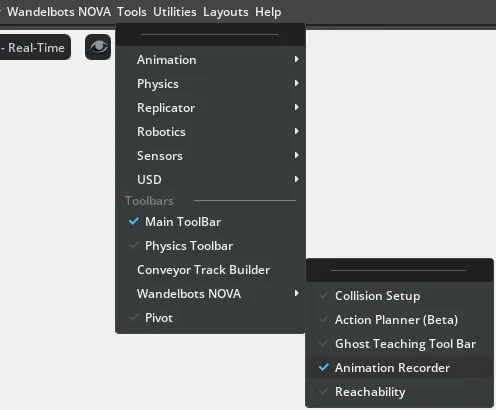
Open the Animation Recorder panel from Tools → Wandelbots NOVA → Animation Recorder.
The panel docks next to the Property panel below the Stage window.
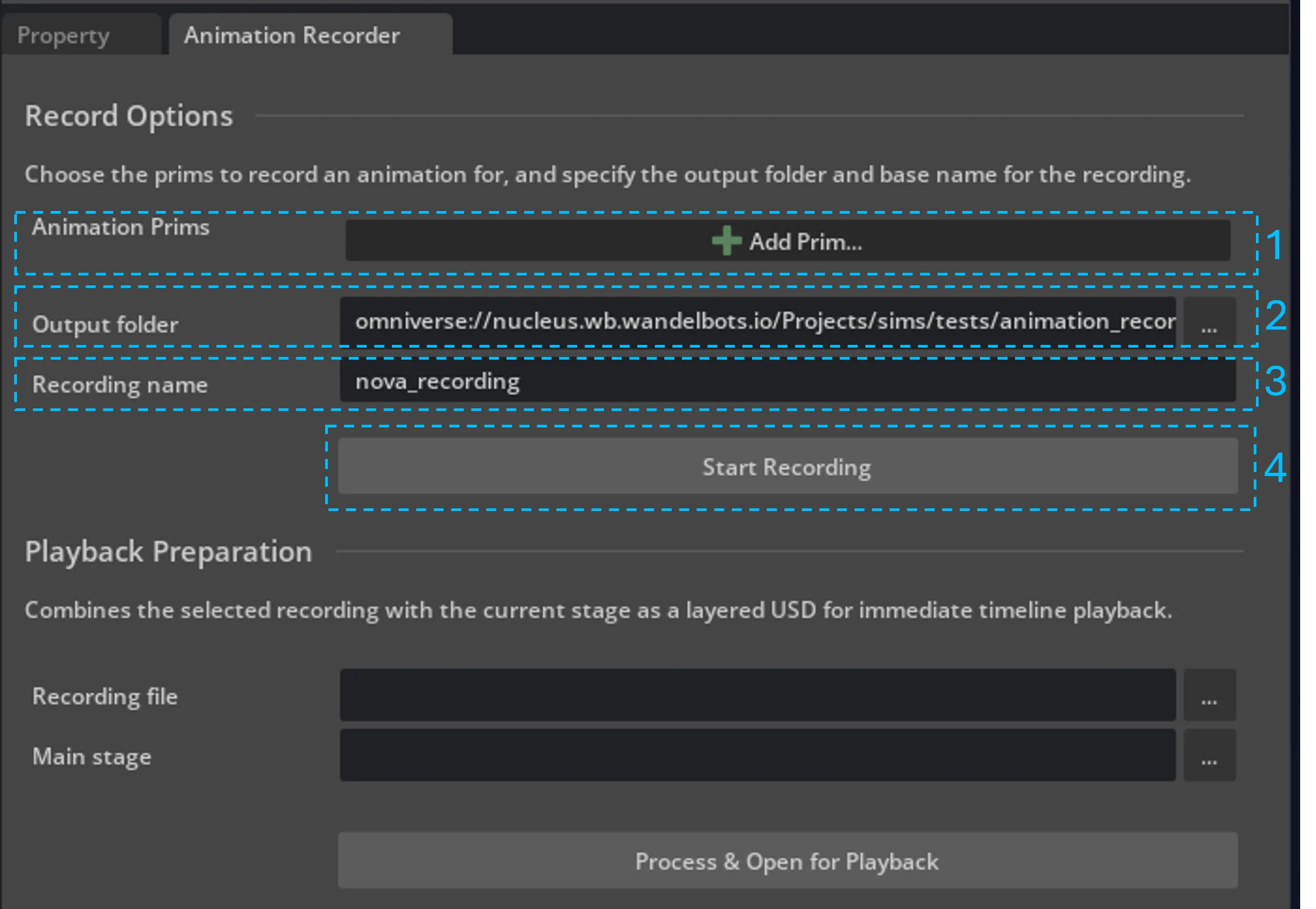
Record
- Select the prims you want to track.
All children of the selected prims are included. - Select the output folder for the recording with the
FilePickerDialogbutton.
By default, the foldernova-recordingsin the current stage directory is selected and created if it does not exist. - Enter a filename for the recording.
The default isnova-recording. - Click
Start Recording.
The button is active only when at least one prim is selected.
Start Recording does not start the simulation. Start the simulation manually to capture trajectories.
The recorder also captures motion from dragging prims manually, even when the simulation is not running.
Play back
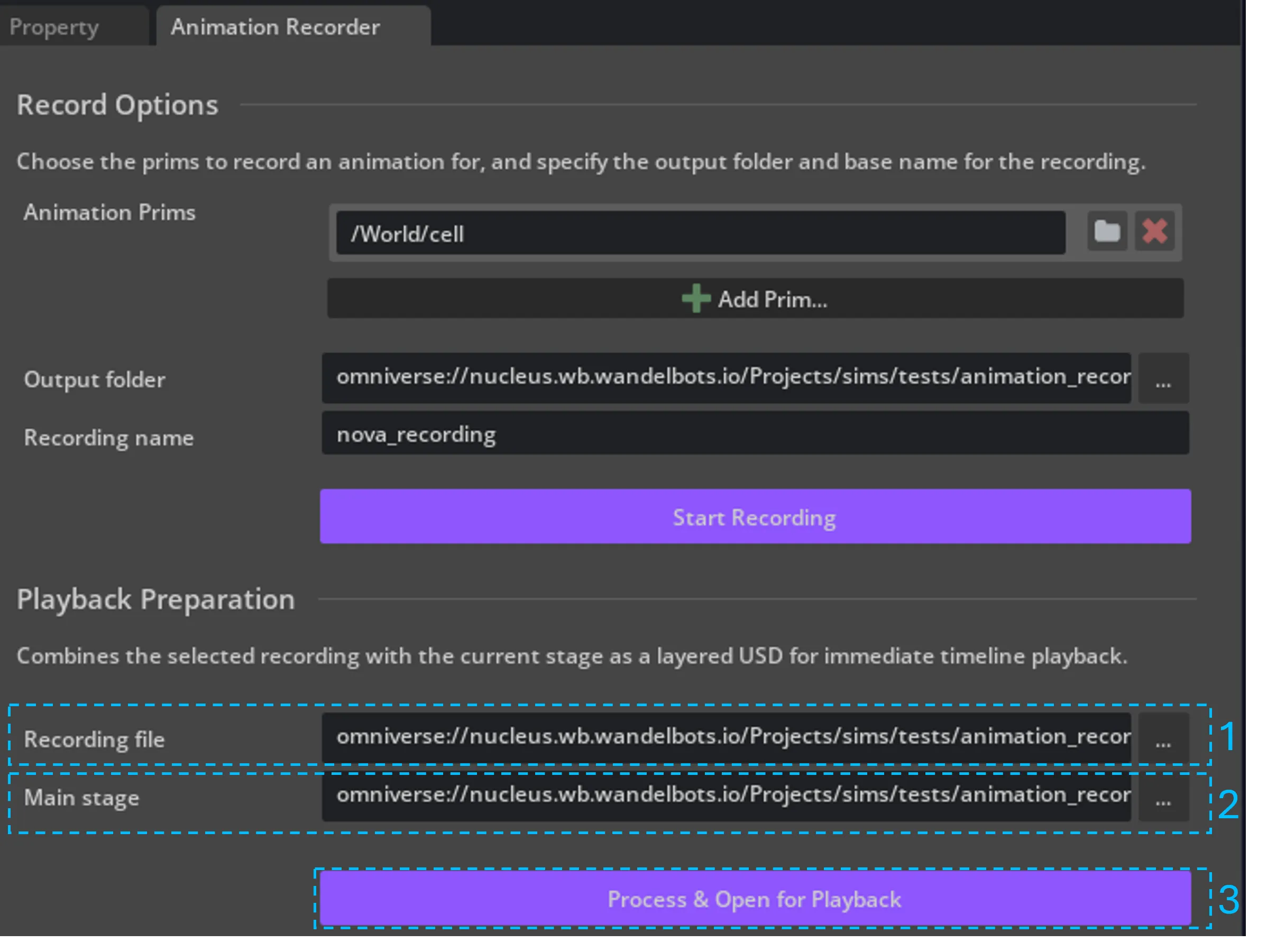
- Select the recording to merge with a scene.
The last recorded file is selected by default. - Select the stage to merge with the recording.
The currently active stage is selected by default. - Click
Process & Open for Playback.
The button is active only when both files are selected. - Enable the
Animation Timeline Windowextension fromWindow→Extensions. - Open the timeline from
Window→Animation→Timeline.
You can create multiple recordings during a simulation run and merge each one independently with a stage. The stage must match the scene used for the recording, otherwise the motion trajectories do not align with the scene.